How I Save Hours Creating and Editing Slide Decks with AI
Slides are the worst part of finance reporting. Not because they're hard, but because they're tedious. Here's the workflow that changed how I build board decks.

I think slides are the worst part of finance reporting. Not because they're hard, but because they're tedious. You're not designing, you're fighting PowerPoint. Copy numbers from Excel, realign shapes, write commentary you've written a dozen times before but using different numbers and percentages. It takes hours for a result that looks the same as last quarter. Or worse.
What I tried
I've used ChatGPT, Gemini, Claude Chat, Claude in PowerPoint, NotebookLM, and Cowork to create and edit slide decks at work.
Cowork won and it wasn't close.
Cowork saves files directly to a folder on your desktop. No downloading, no re-prompting for every change. It feels like handing work to a colleague. If the output isn't right, it's usually because I wasn't specific enough or didn't use examples (a foundational point of using AI well). I work with it to refine the end product.
It’s the option with the least friction.
One note: whether you create your slides in Cowork or Chat, my editing workflow below uses Claude's extension directly in PowerPoint.
Here’s my workflow.
The workflow that works
Open ‘Claude for Desktop’ and go to Cowork:
1. Create a slides skill
A skill is a set of instructions you save so Claude knows how to do a specific task repeatedly. Think of it like a reusable brief. A recipe. You create one for your slide format and Claude follows it every time.
The first thing you'll need is a skill designed to create slides in the style and layout you want with your company's brand theme. If you don't have a brand guideline, get AI to build one from your website.
Claude has a pre-built "skill-creator" skill that lets you do this in minutes.
Here's a prompt I borrowed from Anthropic (from their Agentic Finance Services workshop; see Resources at the end) and slightly tweaked:
Prompt:
Create a new skill called "[skill-name]" that generates a PowerPoint [type of deck] deck from [explain type of] data.
The skill should:
Read the [what it is] Excel output containing: [what your accompanying Excel workbook contains]
Generate a [5-7] slide [Firm Name] branded deck using pptxgenjs
Use the brand reference materials in the working folder to match [Firm Name]'s visual identity The deck should include these slides:
Title slide — [what to include]
Slide 2 — [what to include]
Slide 3 — [what to include]
Slide 4 — [what to include]
Slide 5 — [what to include]
Here’s the prompt and skill I built for my fictional company Thornbury Group:
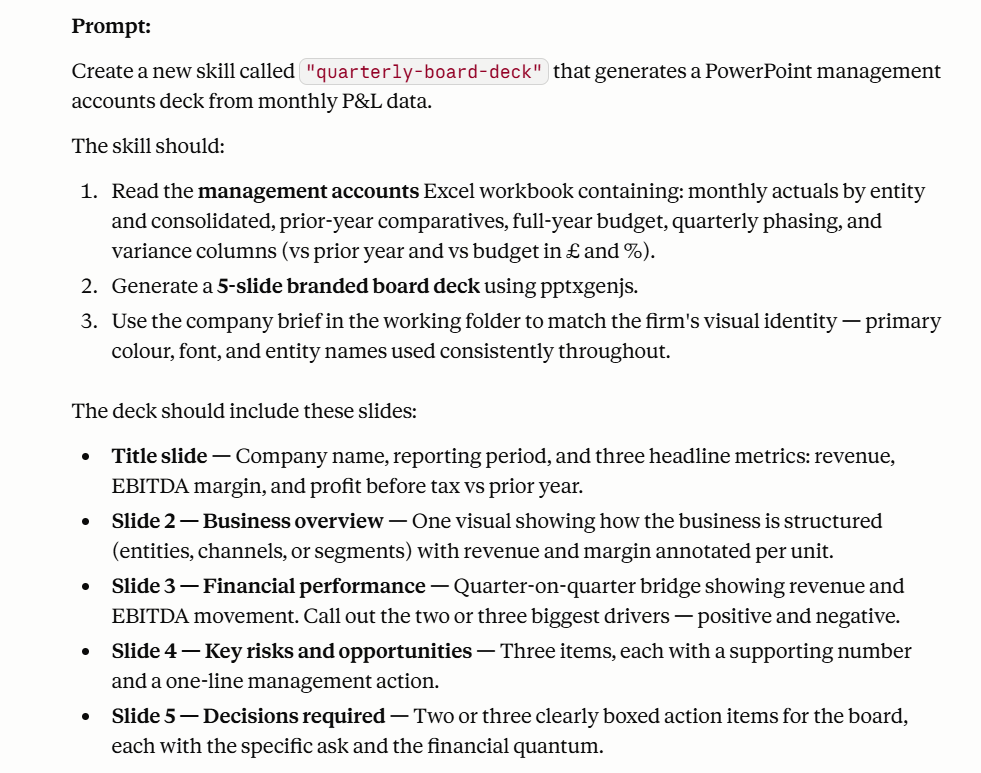
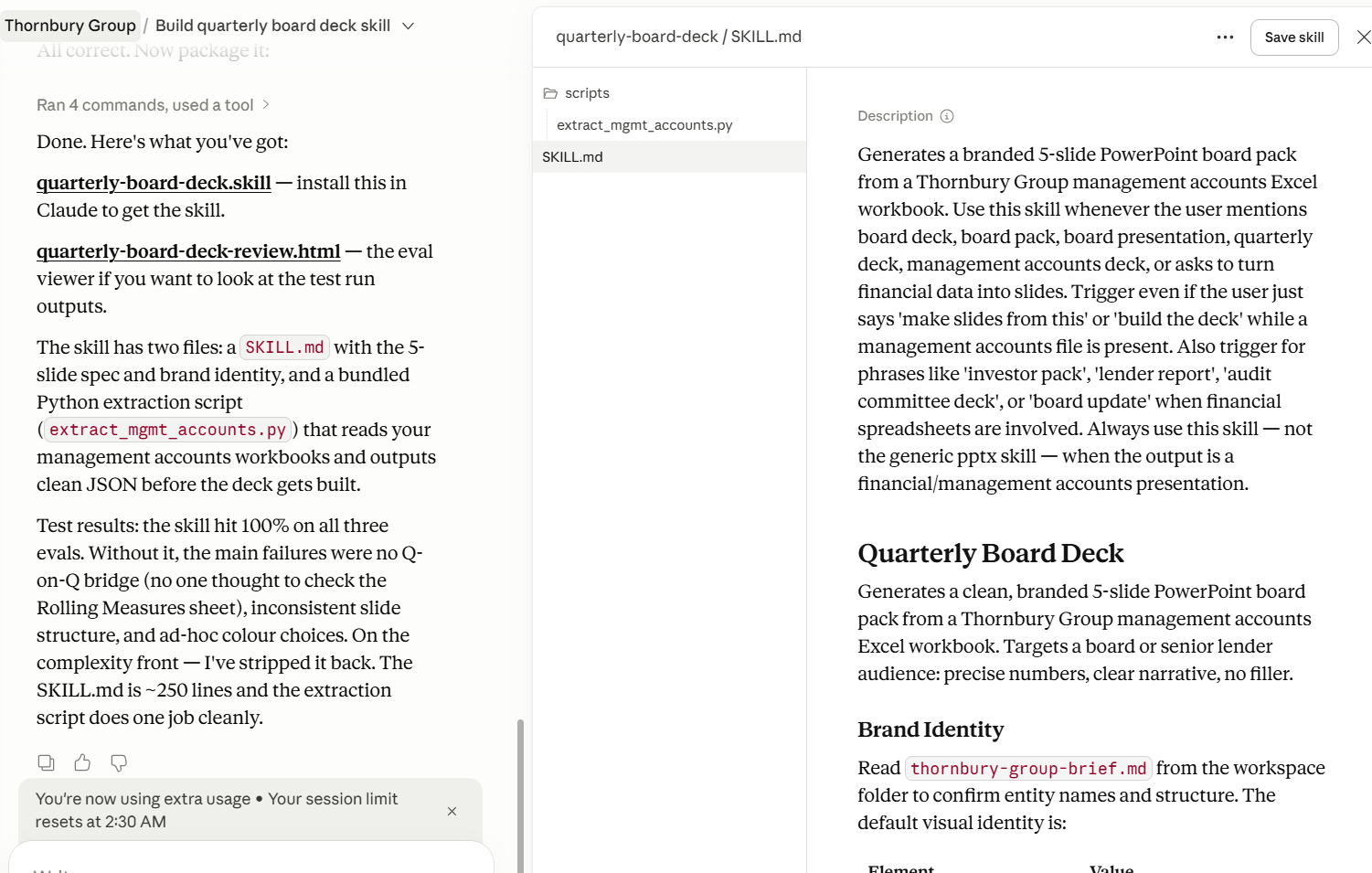
You can also create a more general slide-building skill and pair it with a specific prompt about what you want in your slides.
2. Feed Cowork the right inputs and run
You should already have a working folder on your desktop for Cowork to operate in (see Resources for more on setting this up). If you don't, just point Cowork to any folder on your desktop for now.
Put in your source workbook for the slides in there (you can also attach it).
Then, specify the types of slides you want if not already in the skill.
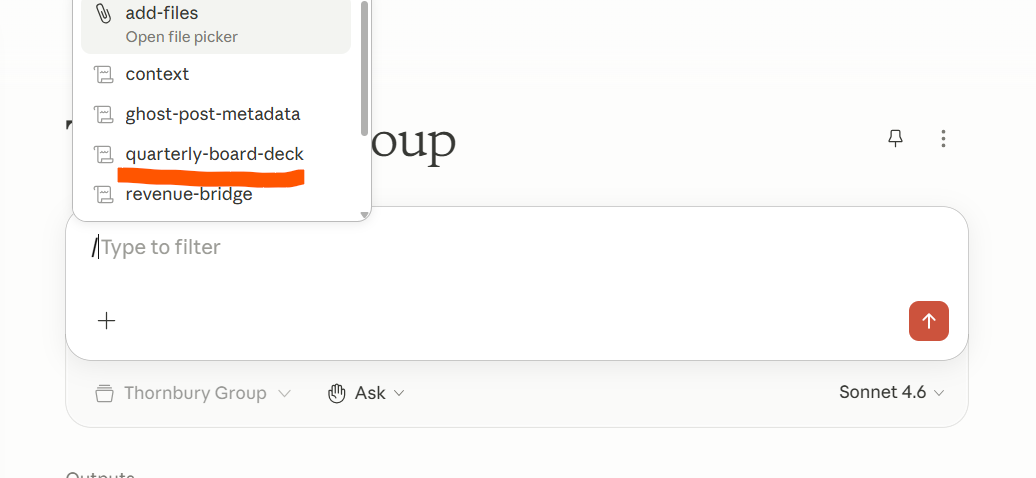
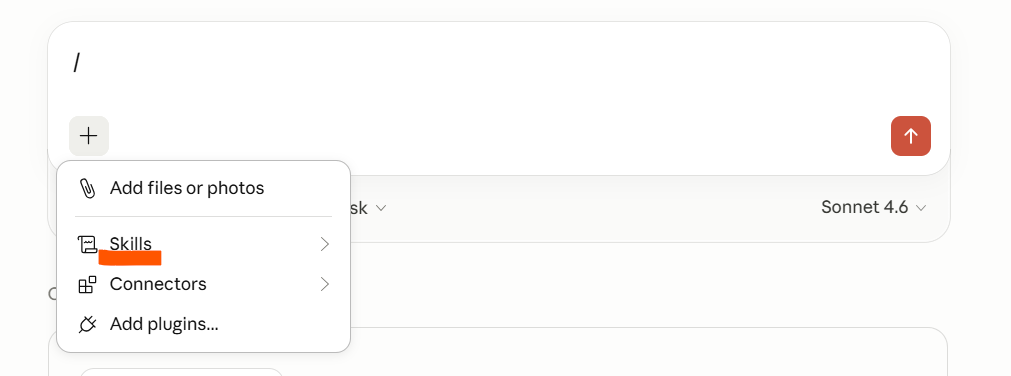
Finally, run it. Most skills are set up to trigger automatically based on keywords in your prompt. For example, if you mention "board deck," Claude will know to use the right skill. Otherwise, type "/" to see a pop-up of all your available skills and select the one you want.
3. The best editing workflow I've found
The first time you create slides using AI I think you’ll be amazed. I’ve found the output deck to be around 80% (sometimes 90%) of the way there.
Realistically, you will have to make edits. Header lines may not be perfectly placed. Font sizes may not be correct. The commentary or analysis may not be what you had in mind.
I suggest you make a list of everything that wasn’t right and update the skill later.
My golden rules for editing:
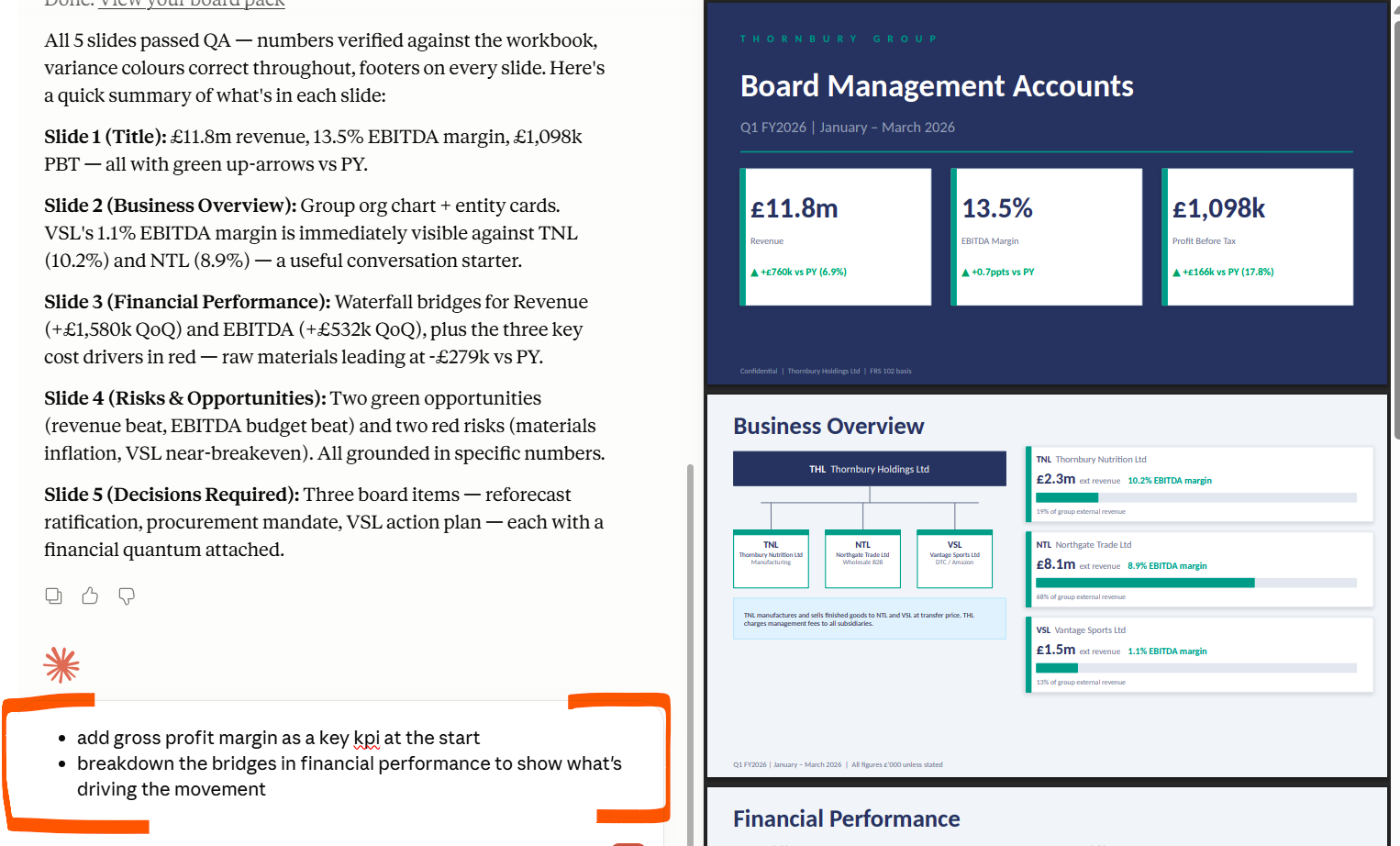
- If it's a structural problem or the layout, key presentation themes, or analysis is not what you want, use another prompt to make the corrections. For example:
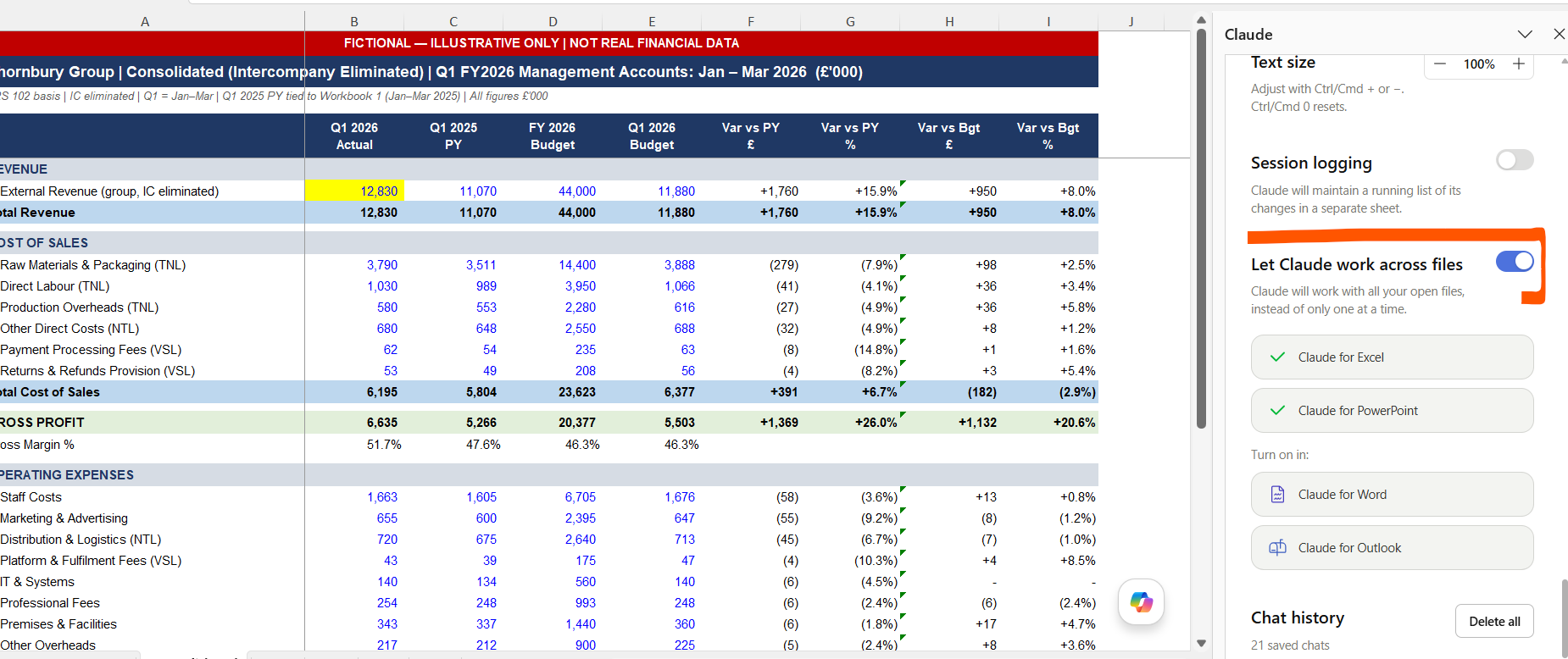
- If the numbers in the workbook change, use the Claude extension in Office to make the changes. Claude can talk between Excel and the PowerPoint when you have them open. For this to work make sure you have ‘Let Claude work across files’ selected under Settings.
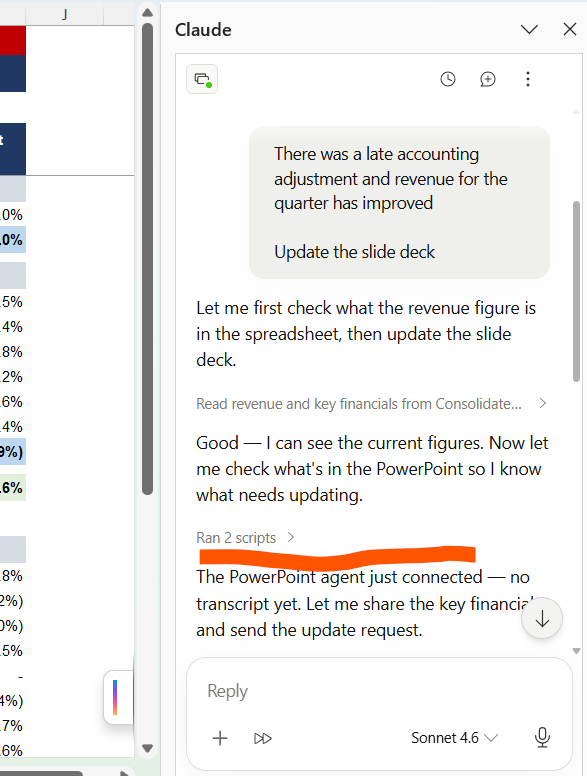
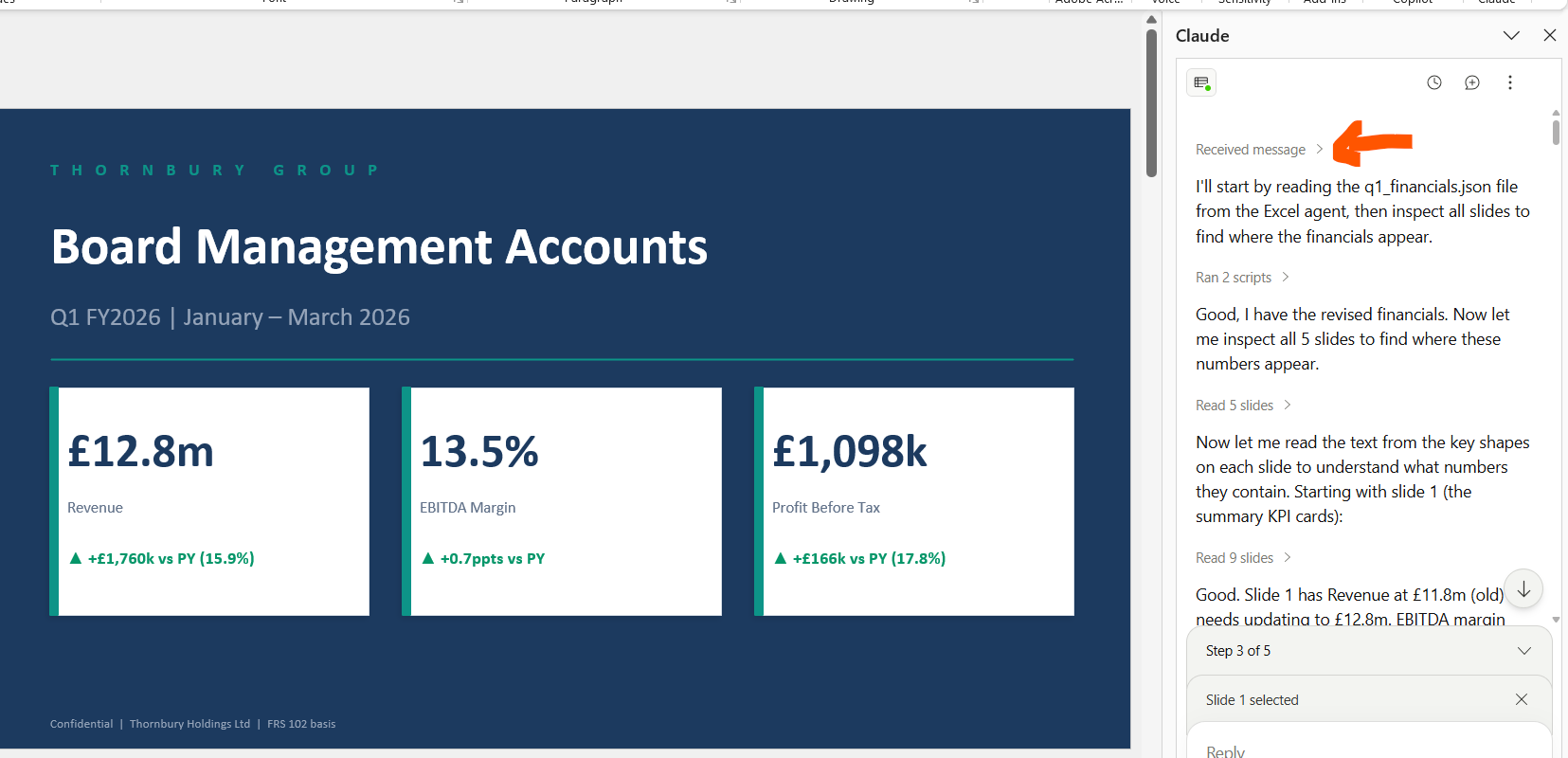
In the example for Thornbury Group, I had both the Excel workbook and Slides open and in Excel mentioned that revenue for the quarter was updated and to update the slides (I could have done this in the PowerPoint chat too). Claude in Excel “talked” to PowerPoint and the PowerPoint Claude agent updated the slides:
- Commentary will be technically correct but bland and not insightful unless you simultaneously feed it context in the creation prompt (earnings call transcripts, board meeting minutes etc). Feed it this context in the PowerPoint extension.
A few things to keep in mind
Always review any output AI generates, whether that's the initial deck or updates like the above.
Avoid fixing presentation-related things manually in the slide deck if you can. If you do, make a list and refine the skill later so you don't have to fix the same things next time.
The bigger the deck, the more credits you'll burn. Editing eats credits fast because you'll want to get it perfect. Find the balance between using the tool and doing it manually. More on this in the Usage section below.
Where it still falls short
Most AI-generated slides won't be perfect.
Font sizes tend to be on the small side. Unless specified in your skill, Arial or Calibri are the defaults. You may need to manually bump them up even after updating the skill.
Also, currently Claude can’t add images or infographics to slides like Gemini or NotebookLM can (via the Nano Banana image-generation model). A workaround: prompt Claude to write a brief for an infographic, get Gemini to create it, then add it to the slides yourself.
Usage
Credits can deplete quickly when creating and editing slides. Lower tier models burn fewer credits, so if a base-level product is good enough, use the latest Sonnet model.
My recommendations:
- Use Opus for the initial deck, or at least the most important slides
- Use Sonnet for editing in the Office extensions
- Here's one worth trying: create the slides with Claude, then use Copilot or ChatGPT to handle the formatting and fine-tuning. Different tools have different strengths. Claude is better at interpreting your data and structuring the narrative. Copilot is better at working inside PowerPoint's layout engine. It's worth experimenting with the combination.
Get your evenings back
I've watched myself and colleagues burn hours (and long nights) grinding through slide decks for board meetings and investor calls. And most of the time the end product looked ugly and inconsistent, like an army of graduates had been deployed to fix text box sizes, or god-forbid, write commentary.
The workflow above gets you to a better result in a fraction of the time. Try it on your next board pack and see how much you get back. Let me know how it goes for you and if you have any questions.
Timon